
 Storage
 4 steps
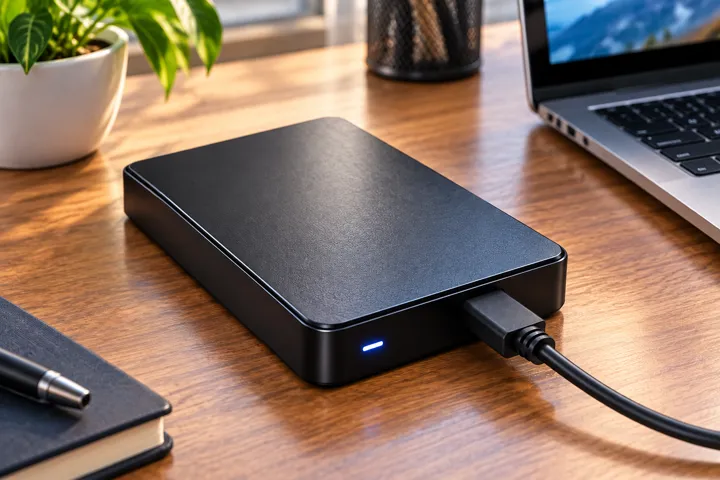
An unrecognized external hard drive can be frustrating, especially when it contains important data. This problem can result from logical or physical failures. This article explains the common causes, how to diagnose the issue, and measures to protect your data while avoiding irreversible loss.
Common Causes of an Unrecognized External Hard Drive
An external hard drive may not be recognized due to logical failures, such as file system corruption or partition issues, or physical failures, such as mechanical damage or connection problems.
How to Check Whether the Computer Detects the Drive
Connect the drive to a different USB port and check Disk Management. If the device appears in the list but not in File Explorer, there may be a problem with the file system or partition.
When to Avoid Formatting or Initializing the Drive
Avoid formatting the drive if it contains important data. Formatting removes file indexes, making recovery more difficult, especially in cases of physical failures.
Signs of Possible Physical Failure
Repeated clicking sounds, unusual noises, or frequent disconnections may indicate physical failure. In such cases, seeking specialized recovery assistance is essential.
Steps to Diagnose and Resolve the Problem
Test the drive on different USB ports, check Disk Management, and update drivers. If the issue persists, seek assistance from specialized professionals.
Steps to Diagnose and Resolve the Issue
Practical actions to identify and solve external hard drive problems
-
1
Test the Connection
Connect the drive to a different USB port and use a compatible cable.
-
2
Check in Disk Management
Open Disk Management to confirm whether the drive is detected.
-
3
Avoid Formatting
Do not format the drive if it contains important data unless it is necessary for recovery.
-
4
Seek Professional Assistance
In cases of physical failure, consult professional data recovery specialists.
Causes and Solutions for an Unrecognized External Hard Drive
| Cause | Problem | Action |
|---|---|---|
| Logical Failure | File Corruption | Use Recovery Software |
| Physical Failure | Mechanical Damage | Seek Professional Recovery |
| Connection Issue | Faulty Cables or Ports | Test on Another Computer |
Important Tips

Avoid drops and impacts to external hard drives.
Keep backup copies in multiple locations.
Use the 3-2-1 backup method to protect your data.
Frequently asked questions
Quick answers to common questions.
What are the common causes of an external hard drive not being recognized?
The causes may be logical failures (file corruption, partition issues) or physical failures (mechanical damage, connection problems).
Why should I avoid formatting an external hard drive with important data?
Formatting erases file indexes, making recovery more difficult, especially in cases of logical or physical failures.
Related content
More practical solutions in Storage.
iPhone Storage Full: How to Free Up Space
Learn how to identify what is taking up space on your iPhone and discover safe ways to free up storage without losing important files.
 15 minutes
Android Storage Full: How to Free Up Space on Your Phone
Learn how to identify what is taking up storage on Android and safely free up space without losing important files.
Windows Running Out of Space: How to Free Up Storage
Learn how to identify the files taking up the most space in Windows and discover safe ways to free up storage without affecting system functionality.