
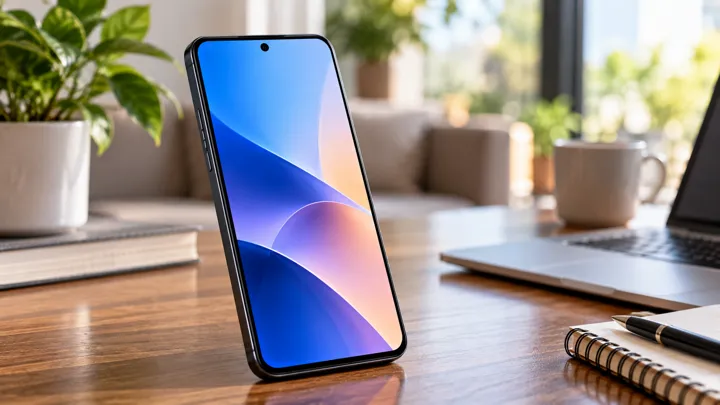
 Storage
 5 steps
Your Android phone's internal storage is essential for the operating system, apps, and data. When storage runs out, device performance can suffer and some features may stop working correctly. In this article, you'll learn how to identify what is using the most space and safely free up storage without losing important files.
Why does Android slow down when storage is full?
Android needs free storage for temporary files, software updates, and background processes. When storage is almost full, the system may run apps more slowly, prevent new apps or updates from being installed, increase the risk of crashes, and limit its ability to store temporary data.
What usually takes up the most space on Android?
High-resolution photos and videos, messaging and social media apps, downloads and temporary files, large games and apps, and duplicate or unnecessary files are among the main causes of excessive storage use on Android.
How to free up space without losing important files
Freeing up space on Android requires care to avoid losing important data. Check storage usage, remove duplicate files, clear app caches, uninstall unused apps, and use cloud storage to back up photos and videos.
Step-by-step guide to free up space on Android
A practical guide to keeping your device running smoothly
-
1
Check storage usage
Go to Settings > Storage to identify which categories are using the most space.
-
2
Remove duplicate and unnecessary files
Review the Downloads folder and delete files you no longer need.
-
3
Clear app caches
Go to Settings > Apps > [App] > Storage > Clear cache.
-
4
Uninstall unused apps
Go to Settings > Apps > [App] > Uninstall.
-
5
Back up photos and videos
Use services such as Google Photos or Google Drive to back up and move your files.
Main storage categories on Android
| Categories | Description | Recommended actions |
|---|---|---|
| Photos and videos | High-resolution files | Use cloud backup |
| Messaging apps | Store conversations and media | Uninstall unused apps |
| Downloads and cache | Temporary files | Clear the cache regularly |
Important Tips

Do not install cleaning apps from unknown sources.
Back up important files before deleting them.
Regularly review the Downloads folder and delete unnecessary files.
Avoid storing duplicate videos in multiple apps.
Frequently asked questions
Quick answers to common questions.
Why does Android slow down when storage is full?
The system needs free space for temporary files, updates, and background processes. When storage is almost full, device performance can suffer.
What usually takes up the most space on Android?
Photos and videos, messaging and social media apps, downloads and temporary files, large games and apps, as well as duplicate and unnecessary files.
How can I free up space without losing important files?
Check storage usage, remove duplicate files, clear app caches, uninstall unused apps, and use cloud storage to back up photos and videos.
Related content
More practical solutions in Storage.
iPhone Storage Full: How to Free Up Space
Learn how to identify what is taking up space on your iPhone and discover safe ways to free up storage without losing important files.
 15 minutes
External Hard Drive Not Recognized: How to Protect Your Files
Learn how to diagnose an external hard drive that does not appear on your computer and what precautions to take to avoid data loss during troubleshooting.
15 minutes
Windows Running Out of Space: How to Free Up Storage
Learn how to identify the files taking up the most space in Windows and discover safe ways to free up storage without affecting system functionality.