
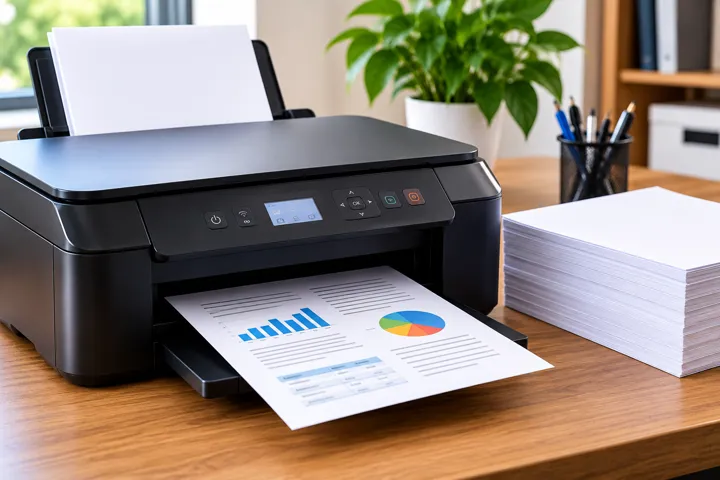
 Printer
 15 minutes
 4 steps
When a printer receives a job but does not print correctly, the cause may involve the print queue, connection, consumables, driver, or printer hardware. This guide explains practical checks and ways to prevent recurring failures.
Why Does the Printer Receive the File but Not Print?
Printing failures can result from a stuck print queue, communication problems, driver or spooler issues, insufficient consumables, or physical faults.
How to Clear the Print Queue
The operating system manages the print queue, which can contain stuck documents that block new jobs. Canceling those jobs and restarting the spooler can restore printing.
Checking Ink, Toner, and Paper
Consumable and paper problems are common causes of printing failures. Check ink or toner levels, paper placement, and the printhead condition.
When to Use Printhead Cleaning
Printhead cleaning is appropriate for symptoms such as blank lines or faded colors. Follow the printer manufacturer's instructions to avoid unnecessary wear.
How to Tell Whether the Printer Driver Is the Problem
An outdated or incompatible driver can disrupt communication between the computer and printer. Check the driver version and connection and use the manufacturer's compatible driver when available.
Steps to Troubleshoot Printing Problems
A step-by-step guide to identifying and resolving printing failures
-
1
Cancel stuck documents
Use the system's printer interface to cancel documents stuck in the print queue.
-
2
Restart the Print Spooler service
Restart the Print Spooler service to release the print queue.
-
3
Clear the spool folder
When necessary, clear C:\Windows\System32\spool\PRINTERS after stopping the spooler service to remove stuck spool files.
-
4
Restart the devices
Restart the printer and computer so related services and connections are reinitialized.
Common Printing Problems and Solutions
| Problem | Cause | Solution |
|---|---|---|
| Printing does not start | Stuck print queue | Clear the queue and restart the Print Spooler service |
| Blank lines | Clogged printhead | Run printhead cleaning according to the manufacturer's instructions |
| Smudged printing | Low consumables or unsuitable paper | Check ink/toner levels and use compatible paper |
Important Tips

Use compatible paper stored in a dry place.
Avoid turning off the printer while a print job is in progress.
Keep printer drivers updated for compatibility.
Print periodically on inkjet printers to reduce the chance of ink drying in the printhead or cartridges.
Frequently asked questions
Quick answers to common questions.
Why does the printer feed paper but not print?
The problem may be caused by a stuck print queue, communication issues, outdated drivers, low or empty consumables, or a physical printer fault.
How do I clear the print queue?
Use the system's printer settings to cancel jobs, restart the Print Spooler service, clear the spool folder when necessary, and restart the printer and computer.
When should I clean the printhead?
Use printhead cleaning when prints show blank lines, faded colors, or inconsistent patterns, following the manufacturer's instructions.
Related content
More practical solutions in Printer.